
First-hand walkthrough
How to claim your business in ChatGPT Business Hub
Published: · Last reviewed: · By Nick
Short answer
In Kraffic’s 12 November 2026 session, DNS was accepted and a draft was created. Identity verification was later submitted; the overview subsequently showed Verification failed. No reason was shown. Submission is not approval or publication.
Key takeaways
- DNS accepted, draft created, identity submitted, then Verification failed. The cause and resolution time remain unknown.
- Copy the verification record issued for your business. Do not copy another company’s token or overwrite its existing DNS records.
- Use truthful business information and the verification options actually offered to your account.
- Claiming is not a promise of recommendations, traffic, sales or higher placement.
Prompts this guide answers
- “how to claim my business on ChatGPT”
- “ChatGPT Business Hub DNS verification”
- “how to add a business to ChatGPT”
- “does claiming a business improve ChatGPT rankings”
Practical check
Know which step you completed
- Before starting
- Have the company information ready and confirm that the person authorized to complete the identity check is available. Do not share identity documents by email or chat.
- If the flow stops
- Record the last completed step and the status shown. A DNS check, identity review and a published profile are different outcomes.
Related Google questions
- We searched “ChatGPT Business Hub verification failed” on Google on 12 November 2026, in desktop Chrome. Google showed India / New Delhi and personalised results. This is a dated search observation, not search-volume research.
- Relevant related-search wording included: “Business hub in chatgpt”; “Chatgpt claim my business”.
- The visible People Also Ask results mixed in unrelated topics. We excluded those. The practical questions below are our editorial follow-ups, not a claim that Google displayed them verbatim. This does not establish that our questions are unique.
- What should I do while verification is pending? Wait for the emailed decision or request for information. OpenAI says review time varies and to wait for review to finish before retrying. No fixed ETA is established here.
- How do I retry a failed Persona check? Follow the verification email. If Try again is offered, the authorized representative should submit corrected information matching official business records. Do not change country or entity type to bypass a failure. If no retry route exists, contact official support.
- Why is Business Hub still incomplete after an approval email? The email and the UI need to be reconciled. OpenAI directs users to Support when approval is complete but Hub remains incomplete. Provide the affected step, error and a sanitized screenshot. Do not repeatedly resubmit or assume publication.
- Check the official guidance behind these answers.
Workflow for your AI assistant
- Get the plain-text guide or Markdown version. Save the file, attach it where supported, or paste its text into your chat. Use the starter prompt inside.
- The guide tells your assistant what evidence to request, what to check, what not to do and how to report an uncertain result. It does not give the assistant access to your accounts.
- Read the instructions for ChatGPT, Claude, Gemini, Grok and DeepSeek. These are portable reference documents, not a universal native skill installer.
- Tested as of 12 November 2026: content, download structure and one assistant scenario per guide were checked. The underlying case has its own observation dates. The five named apps were not runtime-tested for this release.
- Tools and policies change. Ask your assistant to check the current official sources before use and tell you if it cannot. Downloaded files do not refresh automatically or retrain a model. No outcome is guaranteed.
- Share only redacted evidence. Keep IDs, passwords, codes, private client data and verification links out of chat.
What worked and what did not
- Worked: the website route, DNS verification and saving a draft.
- Did not complete: identity approval and a published business profile.
- What this adds to the official setup guide: our observed sequence, safe screenshots, capture problems and the difference between email and dashboard status.
- The original walkthrough records one business’s experience on 12 November 2026. A distinct owner-reported follow-up was recorded on 18 November 2026; its experiment date has not been established. These accounts do not compare countries, documents or devices.
- We do not know why verification failed. Better lighting helped capture the ID, but that does not show why the later identity decision failed.
What we completed
- We documented the Kraffic setup on 12 November 2026. An exact-domain search did not produce a matching existing listing, so we followed the offered online-business creation flow. We verified kraffic.ai through a TXT record at our DNS provider, DigitalOcean, then saved the profile as a draft.
- The owner subsequently completed the identity flow. A failure notification arrived while the overview still showed review in progress. A later check showed Verification failed, with no displayed reason or retry control. Approval or publication has not been established.
| Stage | Observed result |
|---|---|
| Website-domain DNS verification | Accepted; flow advanced to business details |
| Business profile | Saved as a draft |
| Identity verification | Submitted, then Verification failed; no reason displayed |
| Published profile or agent | Not established by this walkthrough |
A later attempt: prepare before the session expires
Owner-reported follow-up recorded 18 November 2026. The experiment date has not been established.
In a later attempt, our team used a US passport and the entity verification route. While we waited for the person who held the company registration details, the session timed out. A notification then said verification could not be completed. This is our reported experience, not evidence that the passport or entity was rejected, or that timeout was the platform’s recorded reason.
Our practical lesson: have the authorized representative, the document type requested by the flow, and accurate company registration details ready before starting. Do not assume an expired session can be resumed immediately. Follow the retry or support route actually offered; we have not established a standard reverification wait or a required retry fee.
What to prepare
- Before repeating our route, identify the exact business website, the person authorized to represent the business and the provider managing its authoritative DNS. Keep your business description and actual policies ready. A DNS account and a hosting account may be different.
- OpenAI’s current setup guide describes eligibility by location and business type. The choices shown for your business may differ from ours. Claiming and creating a Business Agent are separate; agent availability is narrower.
How Kraffic registered its website
- These are the stages observed in our own session, not a promise that every account will see identical screens. The screenshots below are genuine captures from that session. We omit private verification values and personal account details; no client account data is shown.
Open Business Hub and look for the exact business
We opened ChatGPT Business Hub and searched for Kraffic. Check the website and business identity before selecting a result. If no correct match appears, use an add/create option only when the service offers it; do not claim an unrelated listing.
Choose the business type that matches reality
For Kraffic, the creation screen offered a physical-location route and a website route. We used the website route for kraffic.ai. This example is an online business, not a walkthrough for claiming a local shop.
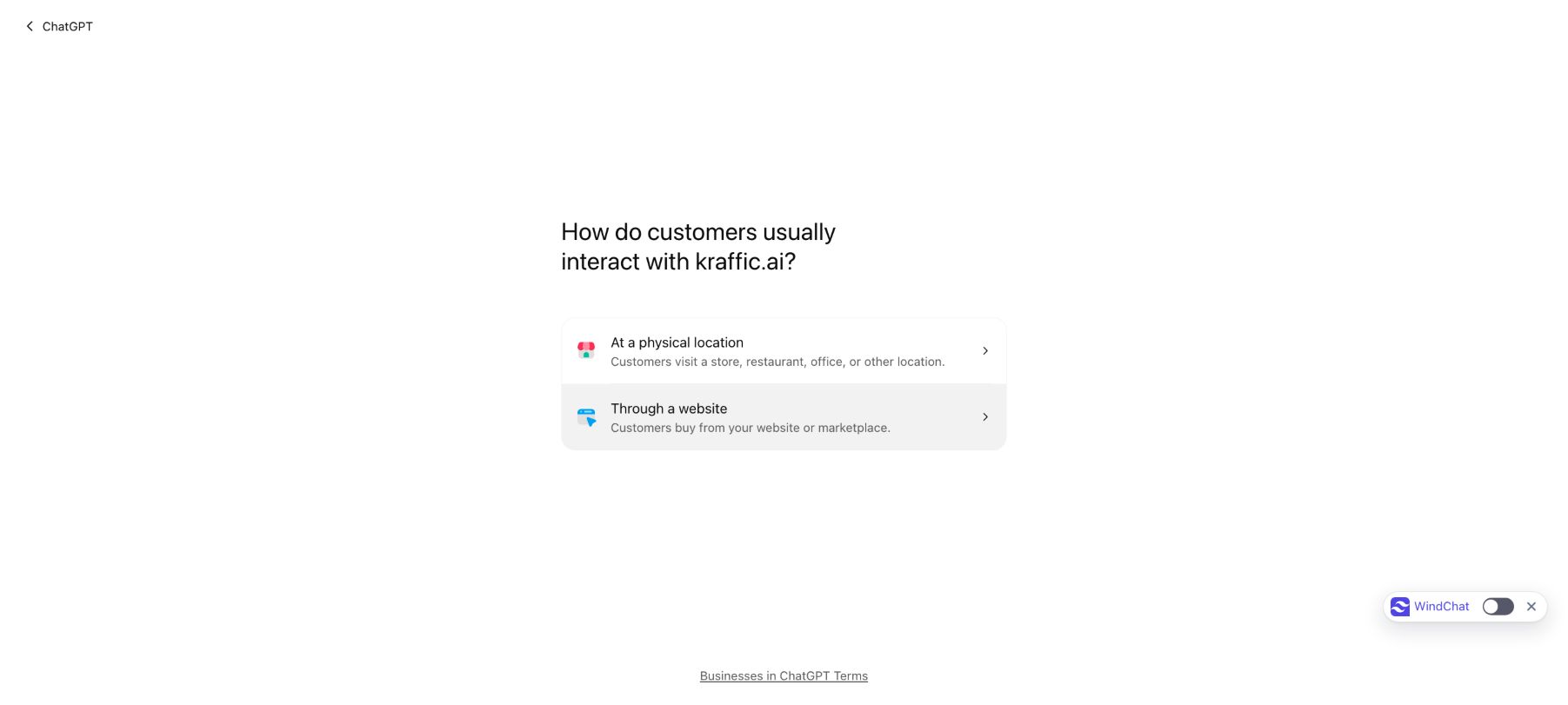
Actual Kraffic setup, 12 November 2026. We followed the website route. The small WindChat control is a browser extension, not a Business Hub step. Get the record issued for your domain
The flow issued a DNS TXT verification record. We used its exact host and value for kraffic.ai. We do not publish that account-specific value here. Your administrator should copy the current record from your own verification screen, not from an example or another business.
Add a separate TXT record at the authoritative DNS provider
We opened the existing kraffic.ai DNS zone in DigitalOcean and added the issued TXT record with a 3,600-second TTL. We preserved the existing website, email and other verification records. DigitalOcean’s record-management documentation explains its hostname and TXT-value fields. This TTL records our choice, not a universal OpenAI requirement.
Return to Business Hub and verify the domain
After saving the record, we returned to the verification flow. It accepted the domain and advanced to business details. That advance is the evidence of the completed DNS step; it is not evidence of identity approval.
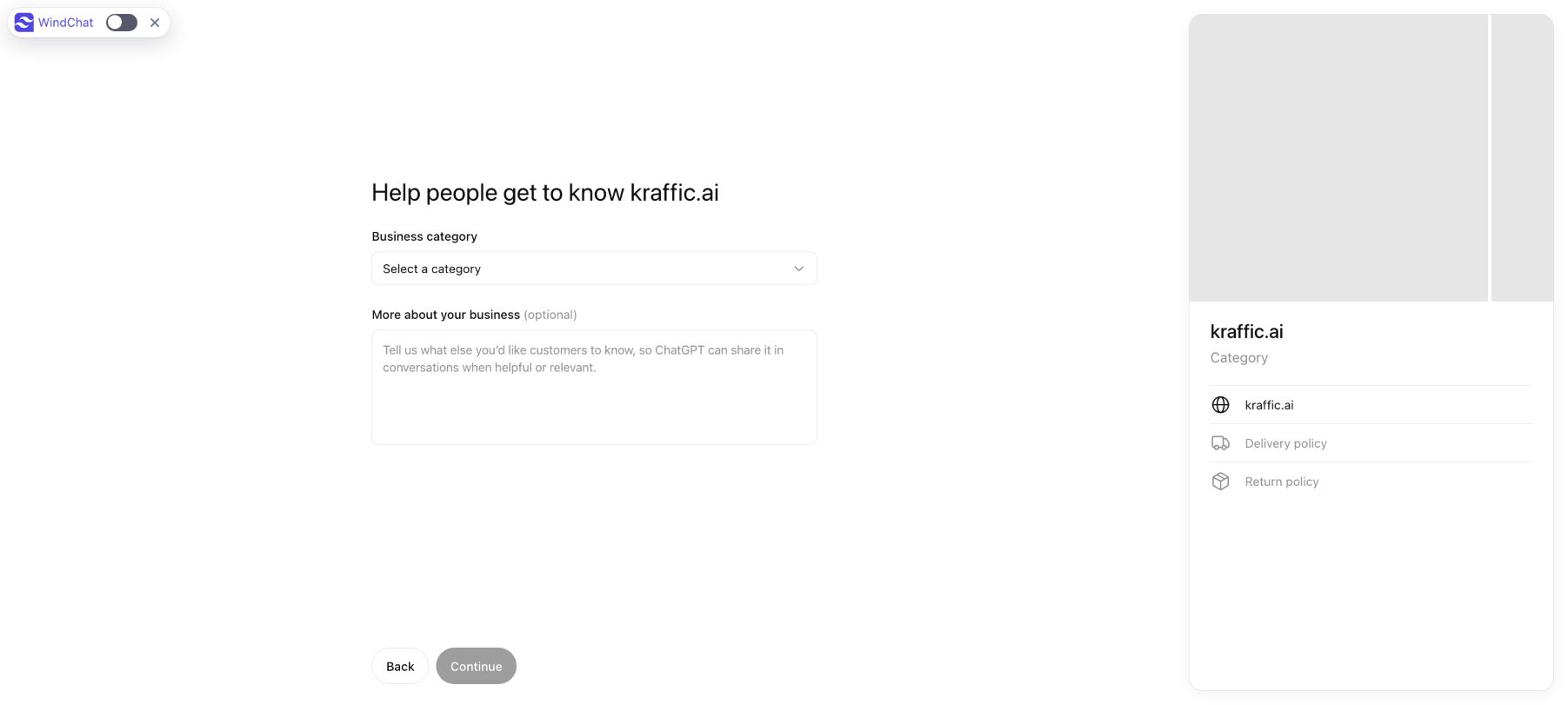
Actual screen reached after DNS verification was accepted. Profile details still needed completion. The WindChat control is unrelated browser UI. Complete accurate business details and save the draft
We supplied the business details requested by the flow and received a draft-created message. Use your actual category, description and policies. If a required delivery or returns option does not fit your service, resolve the mismatch rather than inventing a policy just to continue.
Read the remaining verification status
The owner reported this sequence: ID card, photo, sole proprietor or entity choice, then Continue. The photo prompted turning left and then right. The owner needed several ID attempts with better light, suggested mobile capture, and reported allowing a few seconds for the document to be read. These are observations of this session, not guaranteed prompts or timings. Successful capture is not overall approval.
Read the final status
A later overview check showed Verification failed. No explanation or retry control appeared in that overview. OpenAI’s current setup guide distinguishes claim verification from identity verification: Persona approval is required to publish changes, view insights or set up an eligible business agent. For a new profile created through Persona, OpenAI approval automatically publishes the profile; there is no separate profile-publication step. Publishing a business agent is a separate, optional step. These current rules do not establish why our earlier attempt failed.
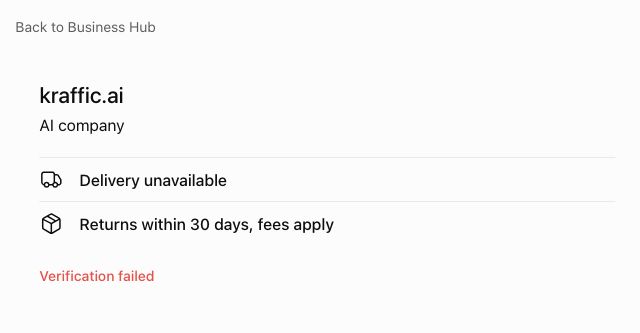
Actual Kraffic overview on 12 November 2026. Cropped to exclude personal account UI; no ID, selfie or private link is shown.
Failure email and next steps
- Privacy-safe paraphrase of the failure notification, not an exact quotation or email template: the identity verification attempt was unsuccessful. We omit personal addresses, private links and account-specific details. The reason is unknown. The notification did not establish which input caused the failure.
- The failure notification arrived while the overview still showed review in progress; a later check showed failed. We do not have a confirmed resolution time or an explanation for that temporary difference. Do not interpret a pending screen as approval.
- Follow the instructions in your own notification. Use Try again only if offered. If no retry or correction is available, use OpenAI Support. Do not create duplicate claims or submit invented information to force approval.
Checks before continuing
- These are preventive checks, not a diagnosis of Kraffic’s failure. Follow the current OpenAI setup guide and your actual verification prompts.
- Our owner reported that an incorrect country could not be changed by going back in this session. Check it before Continue. We have not established that all flows behave this way or that this caused the failure.
- The owner also advised matching a physical business address to bank records and cautioned that virtual operations may complicate verification. We have not verified a universal bank-address matching requirement or a prohibition on virtual businesses. Check the requirements offered for your country and business type and ask official support if the address options do not fit your real operation.
- Have the company’s authorized representative complete verification. Do not impersonate an owner or representative.
- Confirm the correct country and legal business structure before continuing; use accurate, consistent business details.
- Use only a document type offered by the flow. Do not assume acceptance by another service means acceptance here.
- Use good lighting, hold the document steady, allow time to read it and follow the photo prompts. Mobile capture was the owner’s suggestion, not a guarantee.
- Keep DNS acceptance, draft, identity submission, review and approval as separate milestones.
- Never publish ID images, selfies, government numbers, verification codes, private account links or client data.
- Do not change country to bypass eligibility, create duplicate claims or promise a fixed approval time.
When DNS verification fails
- First check that the record was added to the authoritative DNS zone for the exact domain in the claim. Compare the host and value against the current verification screen. Providers may append the domain to a host field, so inspect the resulting record name rather than duplicating the domain suffix.
- Allow for DNS caching and retry the service’s verification when the record is visible. Our successful session does not establish a universal propagation time. Do not delete working records, change nameservers or disable email protections to force verification. If an account or ownership conflict appears, use the service’s support path instead of creating a duplicate claim.
What claiming changes and its limits
- OpenAI describes Business Hub as a way to supply current business information and access eligible management features. Its business overview explicitly separates this from guaranteed placement or sales. A claimed profile does not let a business control independent ChatGPT comparisons.
- OpenAI’s profile policy requires authorization and accurate information, and prohibits fake or duplicate profiles and misleading claims. Treat the setup as an information-management task, not a shortcut around evidence-based marketing.
- Kraffic’s next step is resolving the failed identity check through the official route offered. Nothing in this session demonstrates a visibility lift.
What your team should record
- Keep a private setup log with the business/domain, account owner, verification method, DNS provider, date, last observed status and next action. Record the distinction between a submitted step and an approved outcome. Never place government-ID images, verification values or personal claim links into a public tutorial.
- Confirm the correct business and representative.
- Save evidence that DNS was accepted.
- Record draft, pending and approved states separately.
- Review the actual business policies before completing profile fields.
- Check the remaining identity or publishing step rather than assuming it is automatic.
- Measure business outcomes separately from registration completion.
Checklist before submitting
- Download the Business Hub checklist. It contains no personal information or verification values.
- Read each step with your authorized representative. Mark what you actually completed, not what you intended to do.
- If the status changes, record the time and the screen. Follow official support rather than guessing which identity detail to change.
FAQ
Questions and answers
Does adding the TXT record publish the listing?
No. DNS was accepted and a draft created. Identity was later submitted and showed a failed outcome. Publication was not established.
Can I use Kraffic’s DNS verification value?
No. Use the value issued for your own domain and claim. We deliberately do not publish ours.
Is this the same as verifying a domain for workspace SSO?
No. This walkthrough concerns a business profile in Business Hub. Do not change workspace sign-in or SSO settings while following it.
Will this make ChatGPT recommend my business more?
There is no guarantee. Claiming is a way to manage the information you provide, not to control independent recommendations.
Is every step captured as a screenshot?
No. Genuine safe captures show the website route, post-DNS screen and failed status. Document and photo stages are described from the owner’s experience; the failure email is paraphrased, not reproduced.